
Outbound sales workflows
Hand a live call to the right closer without losing the lead.
A fronter qualifies the lead, then someone else closes. EmberDial’s Transfer button sends the live call to a named teammate, an outside number or a whole team. A team transfer goes to the next ready closer, and the lead stays on the line while EmberDial finds one.
Transfer to a teammate
Press Transfer during a live call and pick a teammate. The list shows who is ready, who is on a call and why anyone else can’t take a call right now, such as their browser not being ready. Add a short briefing if the closer should know something before they say hello.
A teammate working in EmberDial gets an offer on screen that expires after 30 seconds. You keep talking with the lead while it rings. When they accept, the lead moves to their call, the lead’s details open on their screen and your briefing is filled into their call notes. Protected lead details stay hidden from teammates who aren’t allowed to see them. If they decline or let the offer expire, the lead is still with you and you can pick someone else.
Transfer to a phone or an outside number
Teammates who take transfers on their phone, and outside partners such as a verification desk, are dialed as a warm transfer. You keep talking with the lead while their phone rings. When they answer, they hear your briefing read aloud, or a short heads-up if you didn’t write one, and then the lead is connected to them. Choose Complete transfer to move on and leave the two of them talking. If nobody answers, you’re still on the line with the lead.
Managers can save outside numbers and group them into external teams, each with an optional call-length goal. Agents pick from the saved list instead of typing a number mid-call. Outside transfers go to US numbers.
Send the call to a team: the closer queue
With Relay turned on, a team that receives transfers appears in the picker with a count of who is ready now. Choose the team and EmberDial offers the call to one ready closer at a time, up to the team’s number of tries. If a closer declines or lets the offer run out, it moves on to the next one. You see each try as it happens and can stop the Relay.
- Who goes first: the closer who has been idle longest, a round robin across the team, or team leads first.
- Licensed in the caller’s state: on by default, so a closer is only offered calls from states on their profile. You choose what happens when the lead’s state is unknown.
- How many tries: from one to five per team, three by default.
- When nobody takes it: the call comes back to the agent, or overflows once to another team or a saved number.
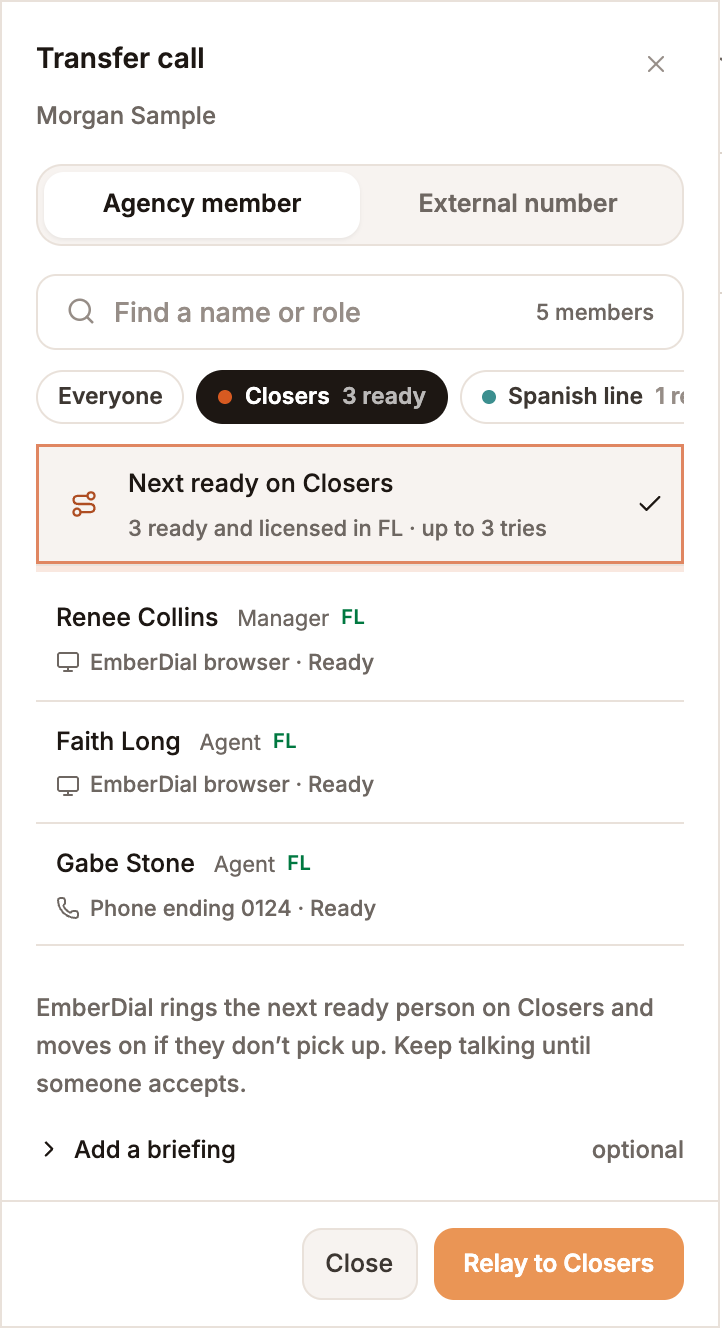
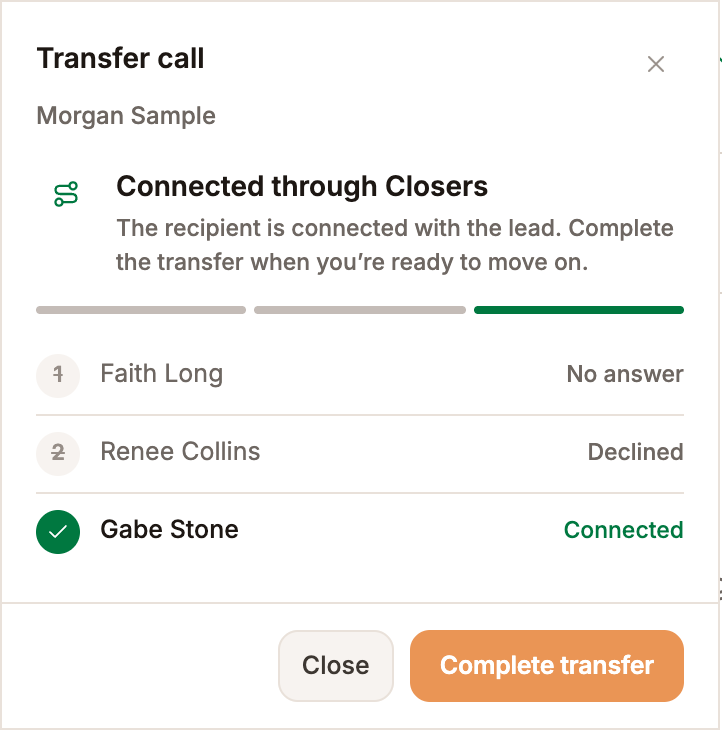
The agency owner turns Relay on in Settings, under Team structure, and marks which teams take transfers on the Team page. Without Relay, those teams still group people in the transfer picker. Every transfer, with or without Relay, uses the same transfer steps described above.
Review how transfers went
The Transfers log lists each transfer with who sent it, where it went, how long it rang and how long the lead stayed with the destination. For external teams with a goal, it shows how many transfers reached it. Roles allowed to export can download the log as a CSV.
Transfers come with every calling license; there’s no transfer add-on. In a demo, walk through a team transfer with your own floor’s roles: fronters, closers, verification or a partner desk. Life insurance floors are one common example, and the same routing works for any team that hands calls between people.
Related workflows
A transfer that doesn’t close today often becomes a follow-up. See how your team can schedule callbacks and return supported missed calls, or review the steps from a trial request to a first call.
Walk through it with your team’s process.
Bring your lead source, follow-up process and calling setup to your trial request. We’ll show the relevant controls and discuss what your team needs to get started.